
Welcome to the first tutorial of the series. Today we will see how to install Appwrite on your computer.
You can find other tutorials in the series below:
- Install Appwrite Backend on Windows, Mac or Linux Machine
- Create Project and Walk-Through of Appwrite features
- Integration of Flutter App to Appwrite backend
Appwrite is a relatively new but Secure Open-Source Backend Server for Web, Mobile & Flutter Development. It is a self-hosted solution that provides developers with a set of easy-to-use and integrates REST APIs to manage their core backend needs.
Appwrite is the best open-source alternative to Google Firebase as I have explained in my earlier article.
The requirement to Install Appwrite
As Appwrite is a self-hosted backend service. It comes with a containerized package of Docker. So, if your computer can docker then you can run Appwrite.
System Requirements
The application can be deployed on both a small and large scale. The minimum requirements are:
- 1 CPU Core
- 2 GB RAM
- System running Docker
With such a minimal requirement, you can use any machine or VPS to run the service. Using VPS you can use the same backend for multiple clients.
Read more on Selecting the Best Virtual Private Server (VPS) hosting.
Now, let us see the installation of Docker.
Installing Docker
If you already have docker installed on your system you can skip this step.
A Docker uses containers to Build, Share and Run your applications. A container is a standard unit of software that packages up code and all its dependencies so the application runs quickly and reliably from one computing environment to another. The applications are light.
You can read more about containers on the Docker website

Installing docker is as simple as 1,2,3.
- Download Docker For your Machine
- Next, Install the application and follow the instruction
- Done, Now run the application
See, it is that simple. You have successfully installed docker on your computer.
Install Appwrite with Docker
With the above step, we have got all the requirements and are now ready to proceed with our installation.
Remember you will need an internet connection to run this. If you are running for the first time, the Appwrite image will be downloaded from the Docker server. So depending on your internet bandwidth, it might take some time.
I will show the code for different types of operating systems. Here I assume you have a successful installation of Docker on your machine.
Linux and Mac OS
If you are using a UNIX system it is easy to install. You can run the following command.
docker run -it --rm \\
    --volume /var/run/docker.sock:/var/run/docker.sock \\
    --volume "$(pwd)"/appwrite:/usr/src/code/appwrite:rw \\
    --entrypoint="install" \\
    appwrite/appwrite:0.10.3
Please note the appwrite version. It might be different for you based on when you are reading this article.
Windows
If you use Windows OS, then you can install it in two different ways.
CMD
docker run -it --rm ^
    --volume //var/run/docker.sock:/var/run/docker.sock ^
    --volume "%cd%"/appwrite:/usr/src/code/appwrite:rw ^
    --entrypoint="install" ^
    appwrite/appwrite:0.10.3
Powershell
docker run -it --rm ,
    --volume /var/run/docker.sock:/var/run/docker.sock ,
    --volume ${pwd}/appwrite:/usr/src/code/appwrite:rw ,
    --entrypoint="install" ,
    appwrite/appwrite:0.10.3
When you execute the above command, it will first download the docker image.
Next, you will see the option to set hostname and port. You can just press “Enter” to leave it to default. If you already have servers running on that port then you need to change it.
Launching Appwrite Backend
Well Done!
Once the above docker installation completes you can go to your machine hostname or IP address on the browser to access the appwrite console.
I have observed on my installation of appwrtie on Ubuntu 20.04, that it takes around a minute for the console to start on the browser. If it immediately does not start, you can wait for a minute or two.
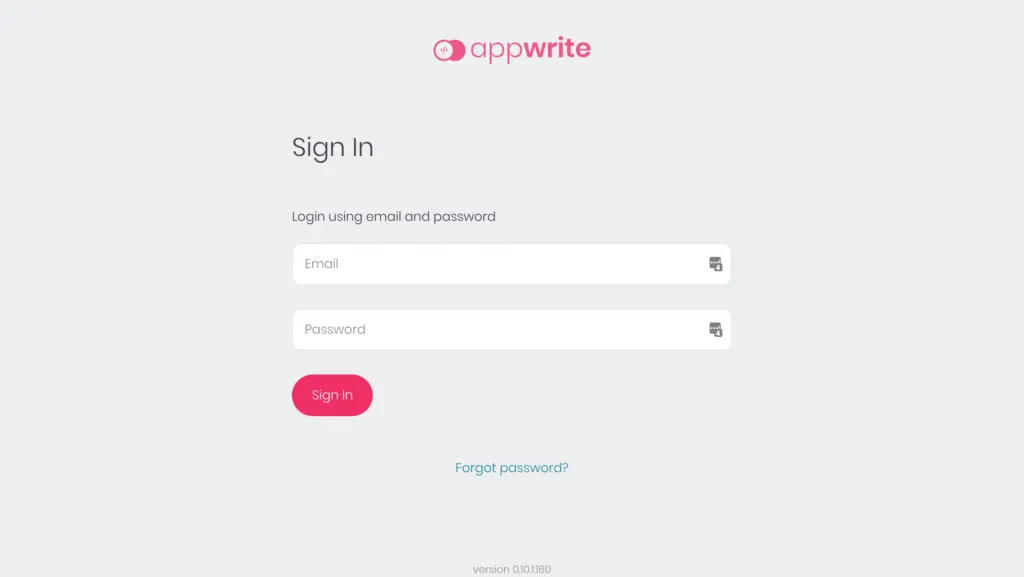
You should see a screen like above.
That is all regarding how to install appwrite on Windows or Mac or Linux machine. In the next article, I will run you through the dashboard of Appwrite and How to create a project.
If you get stuck or faced any issues during the installation process. Let me know in the comment section. I will help you immediately.